
One server for personal tasks. Another for work. Perhaps a third for trying a tool before adding it to the setup you use every day. Until now, changing destinations in PocketHook meant changing the connection details again. Version 1.4 lets you save several servers and choose which one to use, with separate credentials, conversations and settings.
The update arrives alongside Agent Server 0.8.0, which adds QR setup. Together, they make it easier to connect a server and return to it without looking up its URL and token each time.
Each server can look different too: choose a wallpaper, colors for your messages and replies, and a bubble opacity that feels comfortable. Version 1.4 brings multiple servers, a customizable chat and your choice of iCloud sync together in one update.
Switch context from the chat#
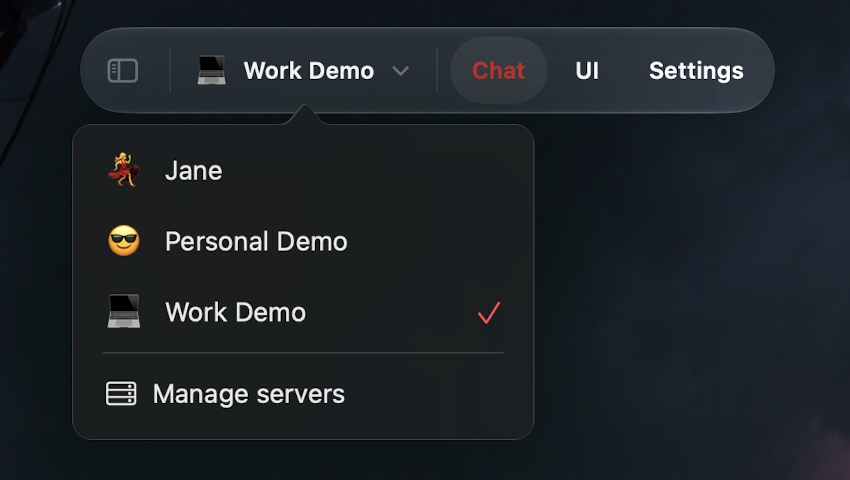
The selector at the top shows your active server. Tap it to move between your personal setup, your work environment and your test server. Each profile retains its conversation, draft and links. A question left half-written will still be there when you return.
Pending work also keeps its destination. You can send a request, change servers and come back later: the result belongs to the chat that started it. Switching what is on screen does not redirect a request already in progress.
While you use the app, PocketHook also checks pending jobs on the other enabled servers. You do not need to open each chat to collect its results. In the background, the operating system still decides when those checks can run; this does not promise instant alerts while the device is locked.
Give each server a name and an optional emoji to recognize it quickly. Leave the emoji empty to use the standard server icon. It is a small detail that helps when several connections have similar names.
A different look for every conversation#
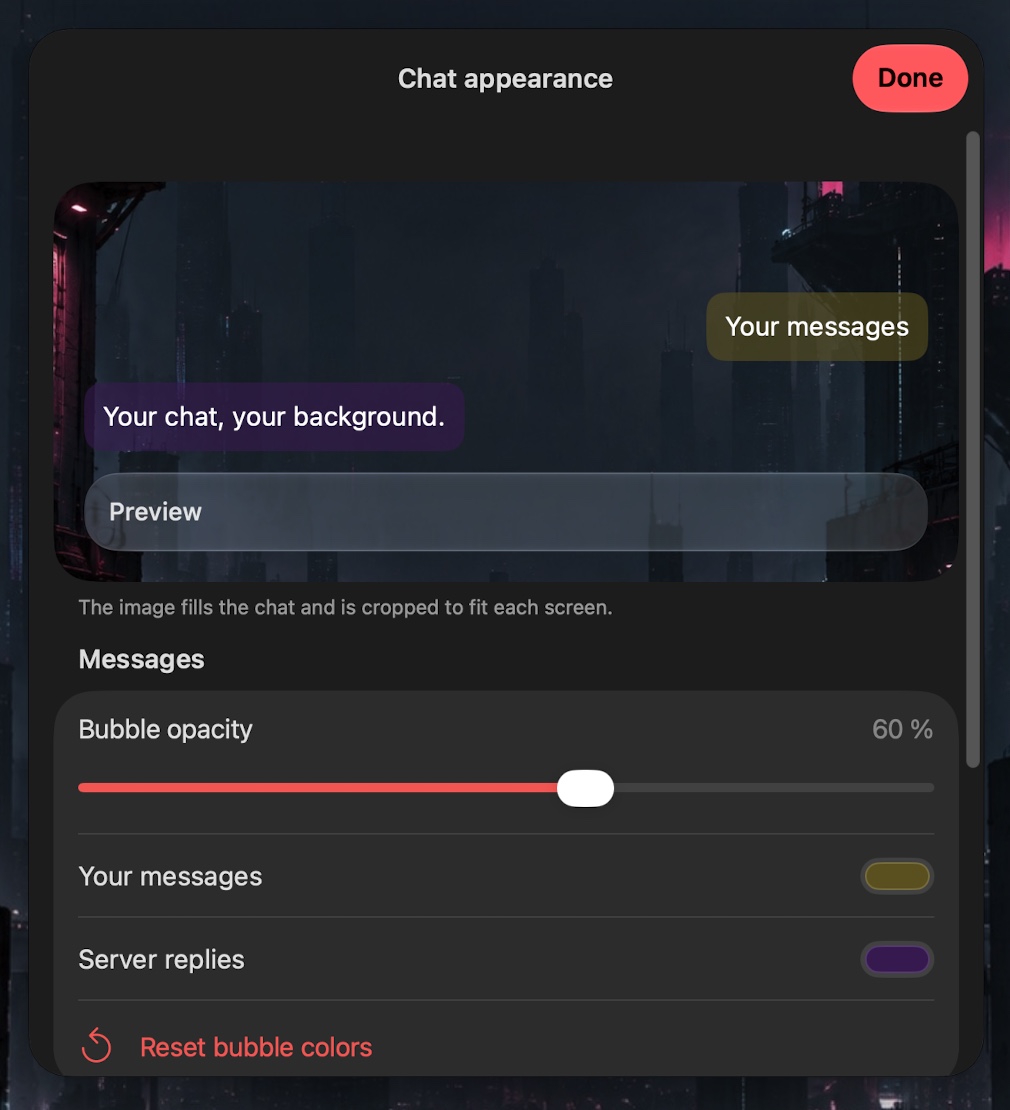
A quiet background for work, a favorite image for your personal server, or colors that make the test environment easy to recognize. Open Settings → Manage servers → your server → Appearance → Styles to choose a wallpaper from Photos or Files and set separate colors for your messages and the replies.
The opacity control changes the bubble background; text and images keep their visibility. Prefer the same wallpaper everywhere? Apply background to all servers copies the image to the profiles added on that device. Each keeps its own colors, opacity and iCloud preference.
These options are free and belong to the app. The wallpaper is never sent to your server. When you enable iCloud for a profile, its appearance follows it to the other devices where you have added it.
More room for chat on Mac and iPad#
Wide windows offer a choice: top navigation with the server and tabs together, or a sidebar. iPhone keeps its bottom tabs. The chat wallpaper extends behind the navigation, with native Liquid Glass following system settings.
Server reply options now appear as rows in a card, one per line. Read them without scrolling through a horizontal strip; their indicators use that server’s reply color. Bubbles keep their separate opacity control, while Reduce Transparency takes precedence for readability.
Configure the connection with a QR code#
In Agent Server 0.8.0 on your Mac, run:
bun run app:qr
The command reads the server configuration and looks for an HTTPS address matching that instance, including an existing Tailscale configuration. When it can identify the connection, you do not need to type those details again. If there is no unambiguous address, it explains what is missing.
The QR appears in your terminal. In PocketHook, open Settings → Manage servers → Add server → Scan QR. You can also import an image of the code. An invitation lasts five minutes, works once and is replaced when you generate another. The app exchanges that code for the configuration over HTTPS; the QR does not contain the permanent token.
The invitation provides access using that server’s credentials. Use it to connect your own devices: it does not create a new user or separate different people’s data inside Agent Server. QR generation requires macOS and the Xcode command line tools. Manual setup remains available for any compatible server.
Settings that fit each server#
One server might reply immediately while another needs a longer timeout. Only one may have a web interface, or you may want different polling intervals for their pending jobs. Connection settings, timeouts, health checks, pending jobs and Personal UI now live in each server’s settings.
The share sheet and Shortcuts actions let you select a destination too. Existing Shortcuts keep the original server. An automation built for your personal environment continues to use it even after you have been chatting with your work server.
Small fixes for everyday use#
Sending photos in chat remains free. In 1.4, you can also enable links that query your local photo library without Pro. Enable this feature in Settings and grant the iOS permission when prompted.
Version 1.4 also improves the composer. Paste images from the Paste menu or the keyboard’s image suggestion, then send them with your message. Dictation no longer puts text back into the input after sending. Tapping the UI tab again reloads the current page.
Settings shows a compact active status when you already have Pro. Purchase information remains available when you need to unlock it.
One server free; several with your existing Pro#
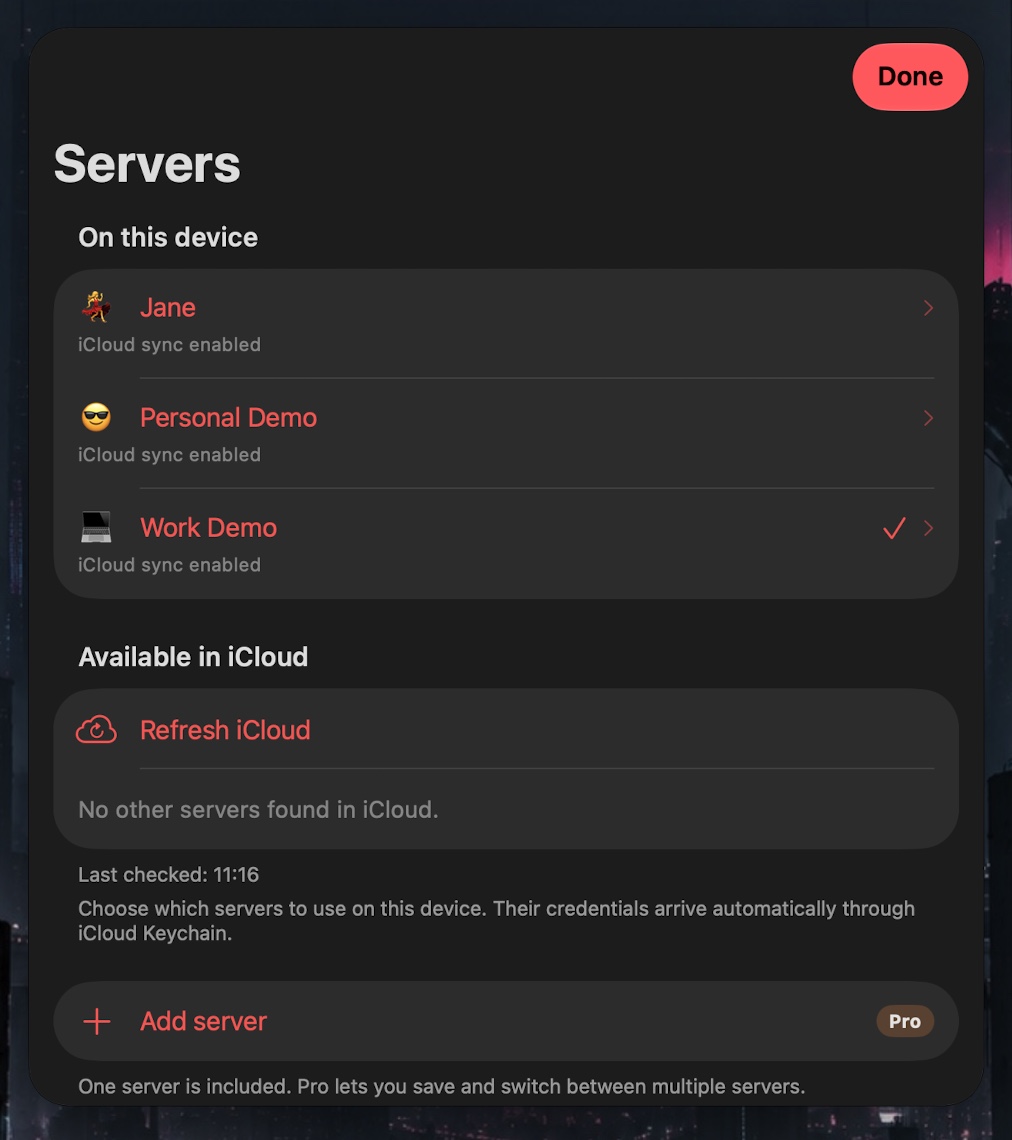
One server remains free, including QR setup, chat and Shortcuts. Saving and using multiple servers is part of PocketHook Pro. It is included in the 14-day trial, the existing Pro purchase and the entitlement for customers of the original paid app. There is no per-server charge.
When the trial ends, you can choose which server to keep using for free. The others remain saved and locked; restoring Pro unlocks them again.
Sync only where you want it#
Choose Sync this server with iCloud to share its name, emoji, chat wallpaper, bubble colors and opacity, connection settings, delivered messages and saved links. Other devices list it under Available in iCloud; you choose where to add it, and its history downloads only after you do. Keep sync off for a device-only server. The selected server, drafts and pending sends remain independent on every device. Authentication tokens sync securely through iCloud Keychain when server sync is enabled. Enable iCloud Keychain on both devices using the same Apple Account; credentials may arrive separately from the profile. You do not need to copy the token obtained by QR. The original conversation retains its existing iCloud synchronization.
Get PocketHook · Set up multiple servers · Explore Agent Server